Here are two more free text to speech options I have recently learned about:
1) SpeakIt! is an extension for the Google Chrome browser that will read text online in your browser. It will read from webpages, emails, and most text you can highlight and right mouse click on. It is free, easy to install through the Chrome Web Store, and offers a pretty good voice for the money (did I mention it's FREE!). My only complaint is that it doesn't highlight words as it reads, but it still works great for a free tool. Click here for more info.
2) WordTalk is a free Plug-in for Microsoft Word. It will read text aloud in a Word document and highlight the text as it goes. (I have blogged about the Speak tool already built into Microsoft word before, but I like WordTalk better because the Microsoft Speak tool doesn't highlight words as it goes.) It offers lots of different options to read (by selection, sentence, paragraph, etc.) and even has a nifty talking spell checker and thesaurus. This is a program you will have to download and install from the website, and you need to make sure to download the version that is compatible with your version of Word. Once downloaded and installed, it shows up as an extra toolbar option at the to of the program screen. Click here for more information.
I hope these resources help. With the scarcity of money nowadays, it is always nice to have access to effective free tools. Please let me know if the comments if you have a favorite tool we haven't mentioned yet!
Friday, October 10, 2014

Friday, September 19, 2014
iOS 8 Checklist and Resources
Apple has released iOS 8, the new version of their mobile operating system that runs on iPads, iPods, and iPhones. I just wanted to post some quick links to some good documents from the Ablenet website about new features in iOS 8 that might affect people with disabilities. I have also posted a good checklist to look at before you make the decision to upgrade or stick with iOS 7 for a little while longer.
Click the links below:
iOS 8 New Accessibility Features
iOS 8 Upgrade Checklist
Thanks for reading!
Click the links below:
iOS 8 New Accessibility Features
iOS 8 Upgrade Checklist
Thanks for reading!
Thursday, March 13, 2014
Easy Emergent Writing Template in PowerPoint
A few weeks ago, our AT team conducted a training for teachers of preschool and elementary school-aged students with moderate and severe disabilities. We discussed ways to give students with more complex learning needs opportunities to write as part of a balanced literacy curriculum. Every proficient writer has become that way by progressing through the various developmental stages of emergent writing, including drawing, scribbling, invented spelling, etc. In our presentation, we discussed the importance of giving students with disabilities the opportunity to move through these early writing stages. We also discussed how students with more severe disabilities often need to use an alternative pencil to do so.
As an outgrowth of that training and discussions we have had with some of the teachers at the training, we have developed a simple Early Writing Template using Microsoft PowerPoint. This template is designed to allow students who can access a standard keyboard, adapted keyboard, or onscreen keyboard to produce a meaningful piece of writing that can be saved and shared. You can access the template by clicking here. (Note: You will have to download the PowerPoint file from Google docs to get the formatting. You won't see anything if you just look at the Google docs version.)
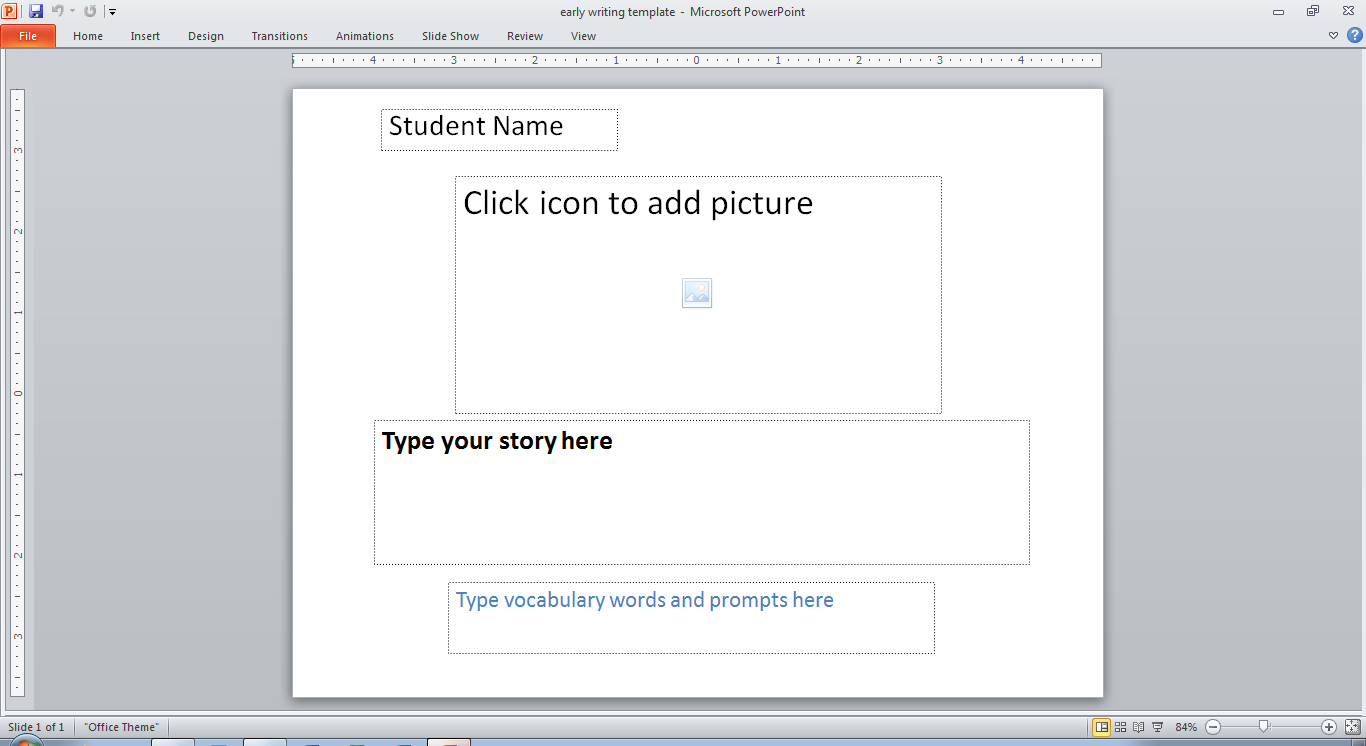
Here is a picture of the template:
 Using the template is a simple 4 step (or less) process:
Thanks and happy writing!
As an outgrowth of that training and discussions we have had with some of the teachers at the training, we have developed a simple Early Writing Template using Microsoft PowerPoint. This template is designed to allow students who can access a standard keyboard, adapted keyboard, or onscreen keyboard to produce a meaningful piece of writing that can be saved and shared. You can access the template by clicking here. (Note: You will have to download the PowerPoint file from Google docs to get the formatting. You won't see anything if you just look at the Google docs version.)
Here is a picture of the template:
Using the template is a simple 4 step (or less) process:- Type the student's name in the first field
- Select a picture (from the web or somewhere on your computer) for the student to write about and add it to the large picture field in the middle of the screen.
- (optional) Type helpful vocabulary words into the bottom box for the student to use in his/her story.
- Have the student type their story in the middle text box. Even if they are just scribbling using the keyboard, they are still playing with the alphabet and producing a piece of writing that can be saved and shared!
Thanks and happy writing!
Thursday, February 6, 2014
Hey! Can I try that? Free Self Determination AT booklet.
Do you ever feel like somebody is trying to shove a new idea at you, or get you to implement a drastic change to how you teach without your consent or input? Isn't it frustrating to be told, "This is what's best for you, and you're going to do it." without being asked how YOU feel about it? As I've been thinking about the concept of self determination and assistive technology lately, I've been wondering if this is how some of our students feel when we give them an unfamiliar piece of technology and say, "Here. This is what's best for you." without ever asking them how they feel about it. I think that allowing students to give input into the consideration of assistive technology will greatly increase their motivation to use AT, and will produce better outcomes for all concerned.
With that idea in mind, I wanted to share a resource a recently re-discovered called Hey! Can I Try That? It is a free booklet, designed by two premier AT experts, that you can use with students to teach them about the purpose of assistive technology and self determination. It includes:
http://www.educationtechpoints.org/manuals-materials/hey-can-i-try-that
http://www.wati.org/content/supports/free/pdf/HeyCanITryThat08.pdf
If you'd like your students with reading and writing disabilities to be able to independently read and complete the worksheet using AT supports, I've also converted the document to an accessible Google doc. Students can type directly into the document, and can also use a "text to speech" computer screen reader to read it aloud without adult help.
With that idea in mind, I wanted to share a resource a recently re-discovered called Hey! Can I Try That? It is a free booklet, designed by two premier AT experts, that you can use with students to teach them about the purpose of assistive technology and self determination. It includes:
- short, easy to read passages,
- case studies to bring abstract concepts to life for our students,
- worksheets for the students to complete, that ask for their ideas and opinions about themselves and their assistive technology.
http://www.educationtechpoints.org/manuals-materials/hey-can-i-try-that
http://www.wati.org/content/supports/free/pdf/HeyCanITryThat08.pdf
If you'd like your students with reading and writing disabilities to be able to independently read and complete the worksheet using AT supports, I've also converted the document to an accessible Google doc. Students can type directly into the document, and can also use a "text to speech" computer screen reader to read it aloud without adult help.
What is Word Prediction? This video explains in MUCH better than I can.
Have you ever tried to explain what Word Prediction technology is to someone who is not familiar with it? I have done this more times than I can count with students, teachers, parents, and administrators, and it is never as easy as I think it should be. That is why I was excited to find this nice video by the TextHelp company that explains quickly, simply, and visually what Word Prediction technology is, and what the potential benefits are for a variety of students, including the following groups:
-Students with Learning Disabilities
-ELL students
-Students with Physical Disabilities
-Poor Spellers
One note about the video: It is made by a specific software company, and explains things based on the way their particular software works, but the basic concepts would apply to any reputable word prediction product out there.
I am excited to include this short (less than 3 minutes) video in my AT toolbox to share with parents, students, teachers, and administrators in my never-ending quest to share the benefits of word prediction with as many people as I can. I have posted a link to the video here. I have also embedded the video into the blog below. Please enjoy and feel free to share with anyone who would benefit from a simple explanation of the features and benefits of word prediction. Here is a brief list of people you could share it with:
-Students
-Parents
-Fellow teachers
-Principals
-ELL teachers
-The Tier II or Literacy Coordinator
-The guy next to you at the gym (Ok, maybe not him, but you get the idea)
For more information about Word Prediction options available on a variety of platforms and for a variety of costs, click here.
-Students with Learning Disabilities
-ELL students
-Students with Physical Disabilities
-Poor Spellers
One note about the video: It is made by a specific software company, and explains things based on the way their particular software works, but the basic concepts would apply to any reputable word prediction product out there.
I am excited to include this short (less than 3 minutes) video in my AT toolbox to share with parents, students, teachers, and administrators in my never-ending quest to share the benefits of word prediction with as many people as I can. I have posted a link to the video here. I have also embedded the video into the blog below. Please enjoy and feel free to share with anyone who would benefit from a simple explanation of the features and benefits of word prediction. Here is a brief list of people you could share it with:
-Students
-Parents
-Fellow teachers
-Principals
-ELL teachers
-The Tier II or Literacy Coordinator
-The guy next to you at the gym (Ok, maybe not him, but you get the idea)
For more information about Word Prediction options available on a variety of platforms and for a variety of costs, click here.
Wednesday, January 22, 2014
How to enlarge font size on an iPad or iPod
Check out this nice article for a great tutorial on how to make a lot of the text on your iOS device easier to access visually.
Friday, December 20, 2013
How struggling in school can help you succeed in life.
This is a link to a great article written by Don Johnson, a man with severe learning disabilities who founded and owns one of the largest assistive technology companies in the world, Don Johnston Inc. (makers of Co:Writer software). He describes how struggling with dyslexia actually gave him an edge over his peers, to whom school came easily. He also describes how a caring teacher became the "change agent" that changed the course of his life forever. This is a quick and inspiring read, and would make a great mini lesson for students to discuss disability, perseverance, and overcoming adversity. You can access the article by clicking here. Enjoy!
SoundingBoard-Easy (and free) AAC app for iPad
Sometimes, you don't want an AAC app that comes with thousands of buttons and lots of complex menus to have to learn. Sometimes, you just want to quickly and easily create a board with a few pictures for your emerging communicators. And sometimes, you don't want to spend hundreds of dollars on an app that you're not even sure will work for your student. If any of those "Sometimes" applies to you, then you might want to check out a FREE app from Ablenet called SoundingBoard.
SoundingBoard is an easy to use app that lets you quickly make communication pages (or "boards") for students. These boards can be linked together to make a more complex communication system, or can just be selected as needed based on the setting and task. The AbleNet website describes the app this way:
If you haven't checked out this free resource yet, you should add it to your AAC toolbox. It is a great app to have for many different situations. My only caution about "build your own pages" apps is that, for students who have a lot to say, it may be a very frustrating experience to only be able to say the things my teacher and SLP get around to programming for me. For those kinds of students, you may want to check out a more fully featured AAC app.
SoundingBoard is an easy to use app that lets you quickly make communication pages (or "boards") for students. These boards can be linked together to make a more complex communication system, or can just be selected as needed based on the setting and task. The AbleNet website describes the app this way:
SoundingBoard is ONLY available for download at iTunes stores.
SoundingBoard transforms your iPad, iPhone, or iPod touch into the latest in communication technology. In just minutes, you can create custom boards using AbleNet symbols or your own photos.
- Create boards with up to 20 message locations
- Virtually unlimited capacity; create boards for any situation
- Use the built-in AbleNet symbol library for instant access to hundreds of symbols
- Record messages of virtually any length for each symbol
- Use your own photo library for even greater flexibility and options
- Take your own photos using your iPad, iPhone, or iPod touch and use them in a board immediately*
- Increase the physical size of the boards by using the iPad
If you haven't checked out this free resource yet, you should add it to your AAC toolbox. It is a great app to have for many different situations. My only caution about "build your own pages" apps is that, for students who have a lot to say, it may be a very frustrating experience to only be able to say the things my teacher and SLP get around to programming for me. For those kinds of students, you may want to check out a more fully featured AAC app.
2 new fully featured AAC apps for Autism: AutisMate and Avaz
When most people think about AAC and the iPad, they usually think about Proloquo2go. It is a great app that offers tons of preloaded vocabulary, along with a highly customizable interface to support lots of different levels of communicators.
I have recently learned about two other apps that share many of the features that make Proloquo2go so popular. They are called AutisMate, and Avaz. Both apps are designed for students with autism, but would support many other students with cognitive and communication impairments. It is always good to have options when individualized supports for students, and I hope this info will help you expand your AAC toolbox a bit today!
First, let's talk about AutisMate. It costs $149.99 and is available on the Apple app store. This app is a unique blend of visual behavior supports and communication. The AutisMate website says:
AutisMate is an iPad app for autism that improves communication and social and behavioral skills (life skills) for individuals with autism by reinforcing autism treatment through a comprehensive approach, offering all of the Visual Supports, including Visual Scenes, Visual Schedules, Video Modeling, Visual Stories and Grid-Based AAC.
The idea is that, since communication and behavior are so intertwined, why not combine them into the same app? The interface is clean and easy to use, and the visual supports are great. Check out the AutisMate website to see some great videos of the app in action. I have also included a video demonstration by a mother of a child with autism showing how she uses the app at home.
Next up is the Avaz app. It costs $99.99 and is available on the Apple app store. Unlike AutisMate, which is a hybrid between a behavior and communication app, Avaz is an AAC app designed to rival Proloquo2go. It offers many really nice features, including:
I have recently learned about two other apps that share many of the features that make Proloquo2go so popular. They are called AutisMate, and Avaz. Both apps are designed for students with autism, but would support many other students with cognitive and communication impairments. It is always good to have options when individualized supports for students, and I hope this info will help you expand your AAC toolbox a bit today!
First, let's talk about AutisMate. It costs $149.99 and is available on the Apple app store. This app is a unique blend of visual behavior supports and communication. The AutisMate website says:
AutisMate is an iPad app for autism that improves communication and social and behavioral skills (life skills) for individuals with autism by reinforcing autism treatment through a comprehensive approach, offering all of the Visual Supports, including Visual Scenes, Visual Schedules, Video Modeling, Visual Stories and Grid-Based AAC.
The idea is that, since communication and behavior are so intertwined, why not combine them into the same app? The interface is clean and easy to use, and the visual supports are great. Check out the AutisMate website to see some great videos of the app in action. I have also included a video demonstration by a mother of a child with autism showing how she uses the app at home.
Next up is the Avaz app. It costs $99.99 and is available on the Apple app store. Unlike AutisMate, which is a hybrid between a behavior and communication app, Avaz is an AAC app designed to rival Proloquo2go. It offers many really nice features, including:
- 3 levels of vocabulary (500 - 5000 words)
- Easy customization
- Multiple types of vocabulary and communication strategies, including Core Words, a Keyboard with word prediction, a Mistake button, an Alert button (for getting someone's attention), and Grid based AAC.
- Can start with only 2 buttons on a page and grow from there.
- Can hide buttons and zoom in on buttons when tapped
- High quality voices
- Automatically tracks how the app is used during a session (instant data collection!)
- Lots of ways to adjust and change settings based on the student.
Friday, September 27, 2013
Cosmonaut-Wide grip iPad stylus for small hands or other motor impairments
My last post dealt with how switch scanning in the new iOS opens up the iPad to people who couldn't previously use it due to physical motor limitations. In that same vein, I wanted to briefly discuss the Cosmonaut Large Grip Stylus. This was designed to feel more like a dry erase marker than a traditional pencil style stylus. I think it is ideal for young children who can't really grasp a smaller stylus yet, as well as for young children who have not yet learned to only touch the screen with one finger at a time. They can grip the stylus and then the stylus becomes that one point of touch screen contact. (We've all been frustated by trying to tap somewhere on the screen with one finger and accidentally doing something weird when another finger made contact with the screen at the same time). This stylus may work as well for older students who have problems extending just one finger to tap a touchscreen, or who cannot hold a teeny little stylus, but could control something a little bit bigger. You can get more information at
http://www.studioneat.com/products/cosmonaut
http://www.studioneat.com/products/cosmonaut
New Accessibility Features in iOS 7- Including Switch Scanning!
Apple has released their newest update to iOS, the operating system that runs their iPads, iPods touches, and iPhones last week. For those of you keeping track, they have now updated from iOS 6 to iOS7. If you've already downloaded the update, you've noticed that the look is very different, but the feel is still pretty familiar. (Note: Updating to iOS 7 will require some storage space on your device. You may have to delete some things off of your device, perform the update, and then put those things you deleted back on your device.) There are several changes and additions in iOS 7, including several changes and additions to the accessibility options. Some of my favorite are more and better voices for Speak Selection, better features in Guided Access, and, my personal favorite, Switch Scanning options! This feature will allow people with motor impairments to access all aspects of the iPad and many of the great iPad apps. To see a general list of what is new in iOS 7 accessibility features, click here. To watch an excellent video overview of the new accessibility features in iOS 7, click here.
Read on for more information about switch scanning:
Until now, many people with physical disabilities have been unable to interact with touchscreen devices, or their motor impairments have severely limited their ability to interact with the screen. With iOS 7, these people can bypass all that junk that used to keep them back and can now access the iPad using 3 different methods:
1) using an external bluetooth switch
2) using the entire touch screen of the device as a switch
3) moving their head to the left and right (the front facing camera on the device watches your movement)
You can also use a combination of switch options, such as using one bluetooth switch to scan through features, but using the touch screen of the iPad to go back to the home screen.
(Note: There is no way to plug a switch with wires into an iPad, so you will have to purchase a bluetooth switch to use with the iPad. Click here for an earlier post about bluetooth switches and iPad apps.)
You can set up the iPad for automatic switch scanning, where the iPad automatically moves the cursor from one choice to the next and you press the switch to select the option you want when highlighted. You can also set up 2 or more switches to perform step scanning (i.e. one switch moves the cursor to the next choice and another switch chooses the highlighted option). The head tracking option uses the front facing camera of the iPad and detects when you move your head to the right or left. You have to move your head approximately 45 degrees either direction to get it to work. When I played around with it, I had a hard time getting the iPad to recognize my right head movement, but the left head movement worked perfectly. If you are trying to use this feature in extreme lighting conditions, it will not work very well either. The switch options are highly customizeable. You can set it up for very basic users, all the way up to neuro-typical kids with limiting motor impairments.
I am really excited to see how these new features will open up the iPad to a whole new group of people who were previously held back just by their motor limitations. To see an excellent video tutorial on iOS 7 switch scanning, including setting up your bluetooth switch and customizing all the settings, click here. I would love to hear (in the comments) how your students and children are using this new feature.
Read on for more information about switch scanning:
Until now, many people with physical disabilities have been unable to interact with touchscreen devices, or their motor impairments have severely limited their ability to interact with the screen. With iOS 7, these people can bypass all that junk that used to keep them back and can now access the iPad using 3 different methods:
1) using an external bluetooth switch
2) using the entire touch screen of the device as a switch
3) moving their head to the left and right (the front facing camera on the device watches your movement)
You can also use a combination of switch options, such as using one bluetooth switch to scan through features, but using the touch screen of the iPad to go back to the home screen.
(Note: There is no way to plug a switch with wires into an iPad, so you will have to purchase a bluetooth switch to use with the iPad. Click here for an earlier post about bluetooth switches and iPad apps.)
You can set up the iPad for automatic switch scanning, where the iPad automatically moves the cursor from one choice to the next and you press the switch to select the option you want when highlighted. You can also set up 2 or more switches to perform step scanning (i.e. one switch moves the cursor to the next choice and another switch chooses the highlighted option). The head tracking option uses the front facing camera of the iPad and detects when you move your head to the right or left. You have to move your head approximately 45 degrees either direction to get it to work. When I played around with it, I had a hard time getting the iPad to recognize my right head movement, but the left head movement worked perfectly. If you are trying to use this feature in extreme lighting conditions, it will not work very well either. The switch options are highly customizeable. You can set it up for very basic users, all the way up to neuro-typical kids with limiting motor impairments.
I am really excited to see how these new features will open up the iPad to a whole new group of people who were previously held back just by their motor limitations. To see an excellent video tutorial on iOS 7 switch scanning, including setting up your bluetooth switch and customizing all the settings, click here. I would love to hear (in the comments) how your students and children are using this new feature.
Monday, September 16, 2013
Introducing Students to Text to Speech Accommodations- (That weird computer voice can be your friend!)
I have produced a short (4 page) document designed to help concerned, yet busy teachers and parents make sense of Text to Speech (or screen reader) technology, when you really don't feel you have time to take on ONE MORE THING!! It is designed to quickly and easily help you:
- Better understand what Text to Speech (TTS) technology is and how it can help struggling readers.
- Find you free and easy tools to get Text to Speech going in your classroom TODAY.
- Figure out how to build Text to Speech into your already WAY too busy school schedule in small, manageable steps.
Monday, September 9, 2013
Highlights from 2012-13 school year
This post is dedicated to the well meaning slacker in all of us. Deep down inside we all WANT to do it all, but sometimes we just run out of time and energy. I know that isn't YOU, of course. But you know somebody like that and sympathize with them occasionally just to keep up appearances :)
I know that every single one of you has already read and re-read every single post on this blog (along with 50 other educational blogs, Pins, and Tweets), outlined them, translated them into Spanish/Portuguese, and Chinese, and shared them with all of your friends, neighbors, and Congressmen. :)
But just in case you missed a few things (Don't worry, I won't tell. Your secret is safe with me), I have posted a few links to Cache AT blog posts you may have missed last school year. I just thought I'd highlight a couple of my favorites to get you started this year:
Guide Access (how to disable that pesky Home button on the iPad!)
Speak Selection in iOS (make the iPad read to you!)
Uploading Word files to Google Drive
Free Text to Speech Options for your classroom
Bookshare.org tutorials
Abilipad-My favorite writing app for iPad
Simple 1 page communication boards
Boardmaker Share-find Boardmaker activities online
Literacy Based lesson plan for Life Skills classrooms
Switch Prompting Training Video
I know that every single one of you has already read and re-read every single post on this blog (along with 50 other educational blogs, Pins, and Tweets), outlined them, translated them into Spanish/Portuguese, and Chinese, and shared them with all of your friends, neighbors, and Congressmen. :)
But just in case you missed a few things (Don't worry, I won't tell. Your secret is safe with me), I have posted a few links to Cache AT blog posts you may have missed last school year. I just thought I'd highlight a couple of my favorites to get you started this year:
Guide Access (how to disable that pesky Home button on the iPad!)
Speak Selection in iOS (make the iPad read to you!)
Uploading Word files to Google Drive
Free Text to Speech Options for your classroom
Bookshare.org tutorials
Abilipad-My favorite writing app for iPad
Simple 1 page communication boards
Boardmaker Share-find Boardmaker activities online
Literacy Based lesson plan for Life Skills classrooms
Switch Prompting Training Video
Text to Speech in the classroom-Research into Practice Article
I came across a great little article just the other day about using Text to Speech technology to help struggling readers. You can access it by clicking here. This article does a great job of taking the current research about Text to Speech accommodations and explaining it in plain English. I love the concept of presenting Text to Speech to all students and letting them decide for themselves whether or not it is a useful tool for them. This empowers students and makes sure that nobody falls through the cracks.
This is also a great article to share with interested (or disinterested) parents, Regular Education Teachers, and Administrators who are seeking more information, or who need to overcome to false notions about reading accommodations.
Thanks for reading. I would love to hear people's thoughts about the article in the comments!
This is also a great article to share with interested (or disinterested) parents, Regular Education Teachers, and Administrators who are seeking more information, or who need to overcome to false notions about reading accommodations.
Thanks for reading. I would love to hear people's thoughts about the article in the comments!
Free Apps resource (and lots of other great info too)
I've posted about this before, but I wanted to let everyone know about a GREAT resource for free iOS and Android apps, as well as all the information you could every want about technology in education. That resource is the Utah Coalition for Educational Technology (UCET) blog that can be found at http://ucetnews.blogspot.com/. They regularly post links to free apps, many of which are usually paid apps that have become free for a limited time. They also have lots of great TED talks, Web 2.0 resources, and other great things for teachers who want to use technology to enhance student learning. UCET is directed primarily toward the general education population, so everything may not pertain to your classroom, but I think you will find plenty that will.
NOTE: We have put a link to this blog on the main page of our blog in the "Favorite Links" section on the top right hand corner of the blog.
Do YOU have great online resources you go to for information and goodies? I would love to hear about them in the comments!
NOTE: We have put a link to this blog on the main page of our blog in the "Favorite Links" section on the top right hand corner of the blog.
Do YOU have great online resources you go to for information and goodies? I would love to hear about them in the comments!
Friday, March 22, 2013
FarFaria app for iPad: The Netflix/Hulu for kids books
A while back someone told me about a new iPad app called FarFaria. It has been described by some reviewers as "A Netflix (or Hulu) for children's stories". I just recently got around to downloading it and playing with it a bit and there are some things I definitely like about it. The app is free to download, but, in order to actually use most of the books, you must pay a $3.99/month subscription fee (roughly $48/year). You do get to try it for free for 30 days.
Some of the things I like about this app is that there is a wide selection of books in the Preschool to 2nd grade range. The books are high quality, and many books come with a "read to me" feature that will read the book in high quality, pre-recorded human narration. All of the books are developed specifically for the app, so you can't find your favorites from Barnes and Noble or the public library here, but most of the books are still very good. This app is easy enough to use that a child could operate it independently, which would be great for self selected reading time in school and at home. If you are willing to spend a little less than $50 a year for children's books, then this app might be for you.
For a more in depth review of the app, check out this link.
Some of the things I like about this app is that there is a wide selection of books in the Preschool to 2nd grade range. The books are high quality, and many books come with a "read to me" feature that will read the book in high quality, pre-recorded human narration. All of the books are developed specifically for the app, so you can't find your favorites from Barnes and Noble or the public library here, but most of the books are still very good. This app is easy enough to use that a child could operate it independently, which would be great for self selected reading time in school and at home. If you are willing to spend a little less than $50 a year for children's books, then this app might be for you.
For a more in depth review of the app, check out this link.
Thursday, March 21, 2013
Putting Tar Heel Reader books into iBooks with speech! (repost)
I am posting a link to a great blogger by the name of Jane Farrall, about putting Tar Heel Reader books into iBooks on the iPad. Tar Heel Reader is a great source of simple, user generated books for all ages, and now the ability to use them with the iPad makes it even better. There are also a few other Tar Heel Reader posts on Jane's Blog that you might want to check out as well.
To read the post, click here.
To simply go to Jane's blog, click here.
To check out Tar Heel Reader, click here.
To read the post, click here.
To simply go to Jane's blog, click here.
To check out Tar Heel Reader, click here.
Ty gives a speech in class, even though he can't talk!
Some great teachers and a fabulous SLP at one of our middle schools have worked really hard to provide meaningful opportunities for students with disabilities to interact with their non-disabled peers. One of those students, Ty, cannot speak for himself, but his teachers have found a way for him to communicate using a Step by Step sequencer device with pre-recorded voice messages that he activates with a switch when he moves his head. The following video is of Ty giving a speech about his favorite movie, Disney Pixar's UP! Ty's SLP communicated with Ty, his mom, and his teachers to identify his favorite video and some of the things he liked about it. While Ty did not write this speech himself (the SLP did), I absolutely LOVE that he is able to give the speech in front of a class of his peers, following the same format that all of them are expected to use. It is plain to see that he really enjoys the experience, and I'm sure at least some of the students in that class gained a new appreciation for Ty and what he is truly capable of.
That is the power of assistive technology, to give a voice to people who otherwise would not have any. Please check out the video below. I hope you will enjoy it, and it will get you thinking about things you could do in your classroom or home.
Note: if you are unable to view the video in this blog, try clicking this link to view it in a separate page.
That is the power of assistive technology, to give a voice to people who otherwise would not have any. Please check out the video below. I hope you will enjoy it, and it will get you thinking about things you could do in your classroom or home.
Note: if you are unable to view the video in this blog, try clicking this link to view it in a separate page.
Friday, March 8, 2013
Boardmaker Studio-taking boardmaker to the next level
I attended a training session at the UATT conference about Boardmaker Studio, the latest product in the great Boardmaker line of products. Boardmaker Studio includes all of the great features of the original Boardmaker, but includes lots and lots of activity templates to create interactive lessons with relative ease. It also costs the exact same amount as regular Boardmaker, (or you can upgrade to Boardmaker Studio from Boardmaker for half the cost!). You can access the notes from the presentation I attended by clicking here. You can also get more info at the Boardmaker website.
A Literacy based lesson plan for students with severe disabilities
At the recent UATT conference, we had the change to attend a presentation from an SLP and music therapist from the Hartvigsen School in the Granite District in Utah. They demonstrated a very well planned and executed lesson to teach students with severe disabilities a wide range of important skills in a brief (30-45 minutes) time period using AT, AAC, music, Core Vocabulary, and much more. I really was impressed with how much thought went into the lesson, and how they were able to target important skills such as:
- Social reciprocity (greetings, farewells, conversations, etc.)
- Communication (including AAC for nonverbal students)
- Vocabulary
- Literacy
- Following 1 and 2 step directions
- Turn Taking
- Sensory/Tactile experiences
- Cause and Effect
- Civil Rights awareness
- and more!
Subscribe to:
Posts (Atom)